To perform its jobs, the app needs to access your data in Shopify on behalf of your store. To be able to do this, it requires some access scopes (or permissions).
The app strives to request the minimum access to function, therefore the access is divided into mandatory scopes, granted at time of app installation, and optional scopes, granted to enable features or enhanced app usage.
These scopes are granted at app installation because they are required for the app to perform basic operations.
Read product and collection data to build feeds.
Read locales data to see what languages a shop support via Shopify language API.
Read product data translations via Shopify language API to build foreign language feeds.
These scopes are granted during app usage, to enable features or enhance the user experience while using the app:
Read GTranslate translations.
Read exposed metafields to compose product identification for tracking.
Metaobjects are custom structured data to enhance your Shopify product data which can be used in several ways.
This scope is required if you want to pull data stored in metaobjects to build feed attributes via metaobject tokens.
Read detailed shipping data for:
shipping rates of items in custom shipping profiles
shipping rates set in local currency. Without this scope, the app will assume that all rates in shipping settings are set in shop currency, and might derive the wrong shipping cost if some rates are set in local currency.
item's shipping profile token. This token can be used in expressions to create rules based on an item's shipping profile
store's shipping profiles. These consts can be used in expressions, for example to "exclude variants belong to profile A", or "double the price of items belong to profile B"
Due to the way Shopify manages access scopes, read_shipping also allows reading some order information via shipping and fulfillment data. This leads to a dreaded warning when read_shipping is requested:
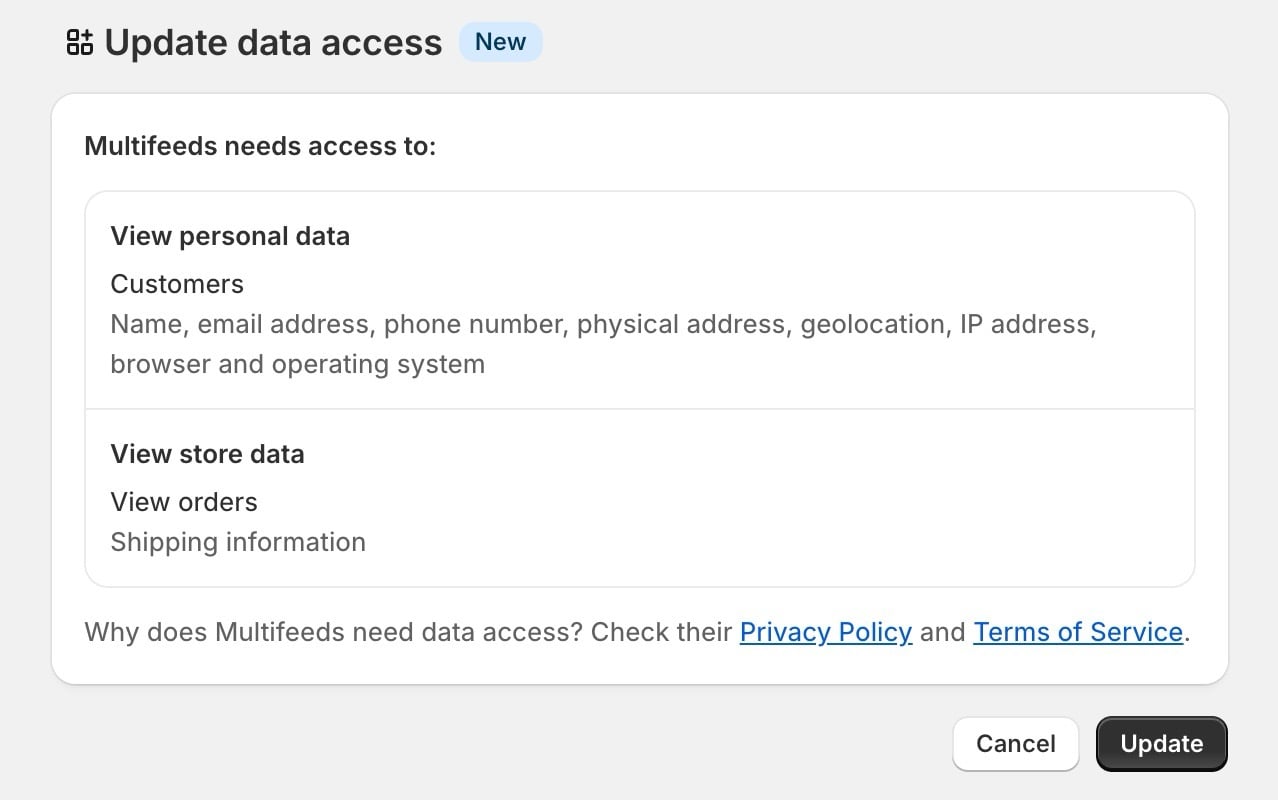
The app does not read nor store order or customer personal data. Read_shipping is only used for the above-listed purposes.
Read product publication data for market specific availability.
Read Shopify Markets data for enhanced usage of:
Market specific translation
International pricing
Read inventory data for:
Cost of goods sold
Variant level inventory tracking
Inventory tracking across locations
Read locations data for inventory tracking across locations
Read the theme files to detect theme integration including Google site verifications and Google Automated discounts.
Create Google Automated discounts
Create proxy endpoints. Required for Google Automated discounts. (required from Nov 14 2025)
Required for 2 use-cases
Grouping products into collection for "Bulk exclude or customize custom feed settings"
(legacy) Store custom feed settings. The app no longer needs this scope to write custom settings. In some edge cases, this scope might be re-granted so the app can complete the migration of custom settings into new storage. After the migration complete, this can be revoked for good.
Upload tracking script to Shopify CDN. Required to enable tracking features. Storing the tracking script in Shopify CDN help your store run faster.
We continue to maintain minimum access scopes through out the app lifecycle. As a result there could be scopes that once required in the past, but are no longer required. Those scopes can safely be removed.
Only the store owner can remove granted access scopes
You can check the permissions granted to the app from inside or outside of the app
From inside the app, go to Settings screen > Privacy tab
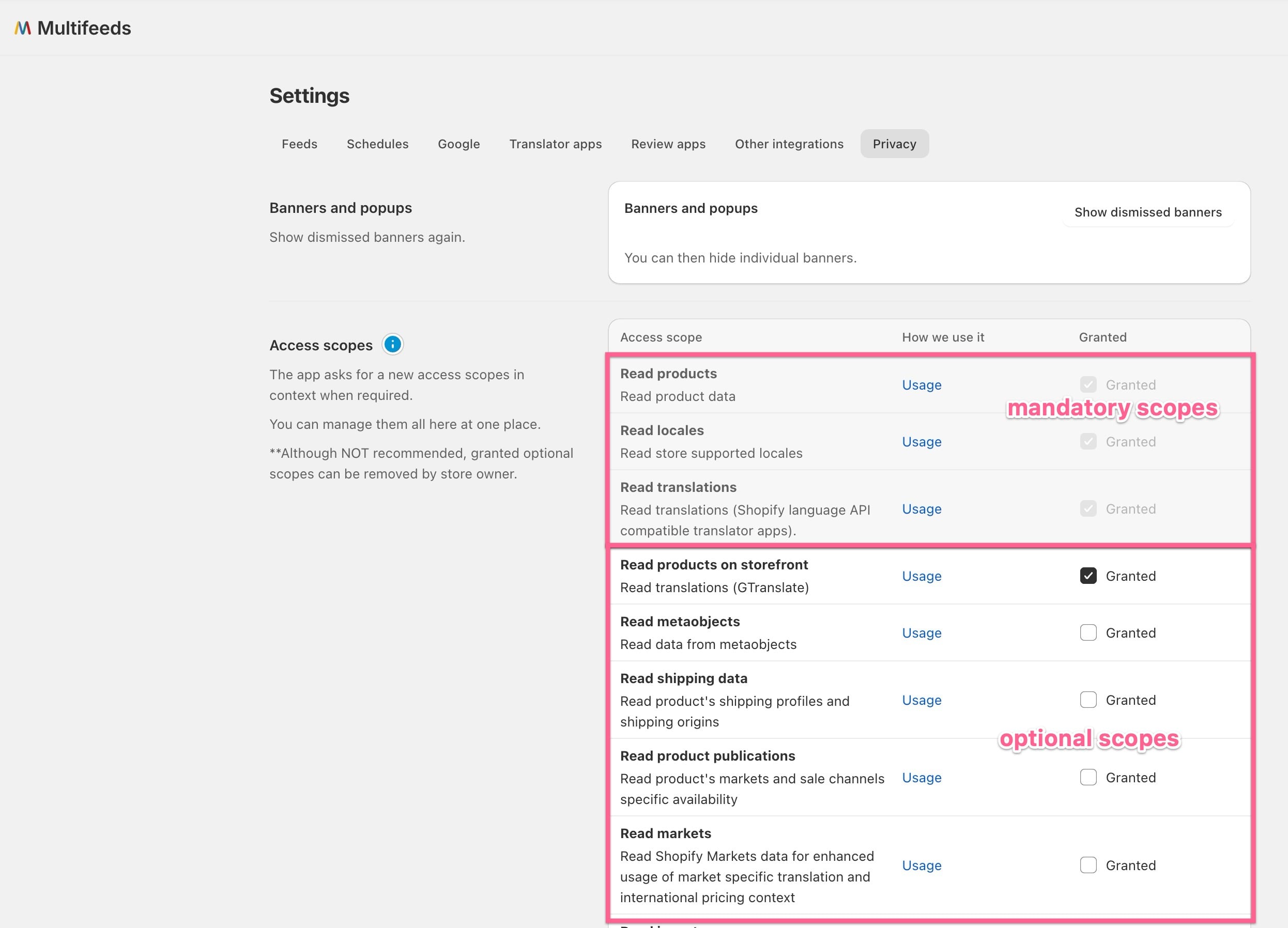
Optional scopes can also be added/removed from this screen. Although adding scopes can be done by any users, removing scopes can only be done by the store owner.
Only the store owner can remove granted access scopes
From outside of the app, go to Shopify admin Settings > App and sales channels > Click the app > Permission details
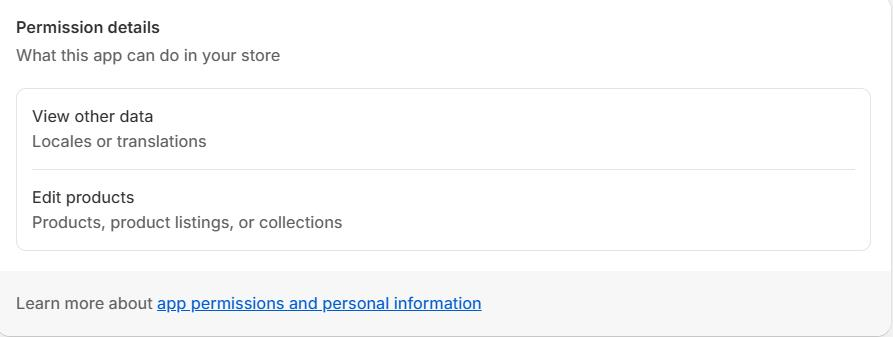
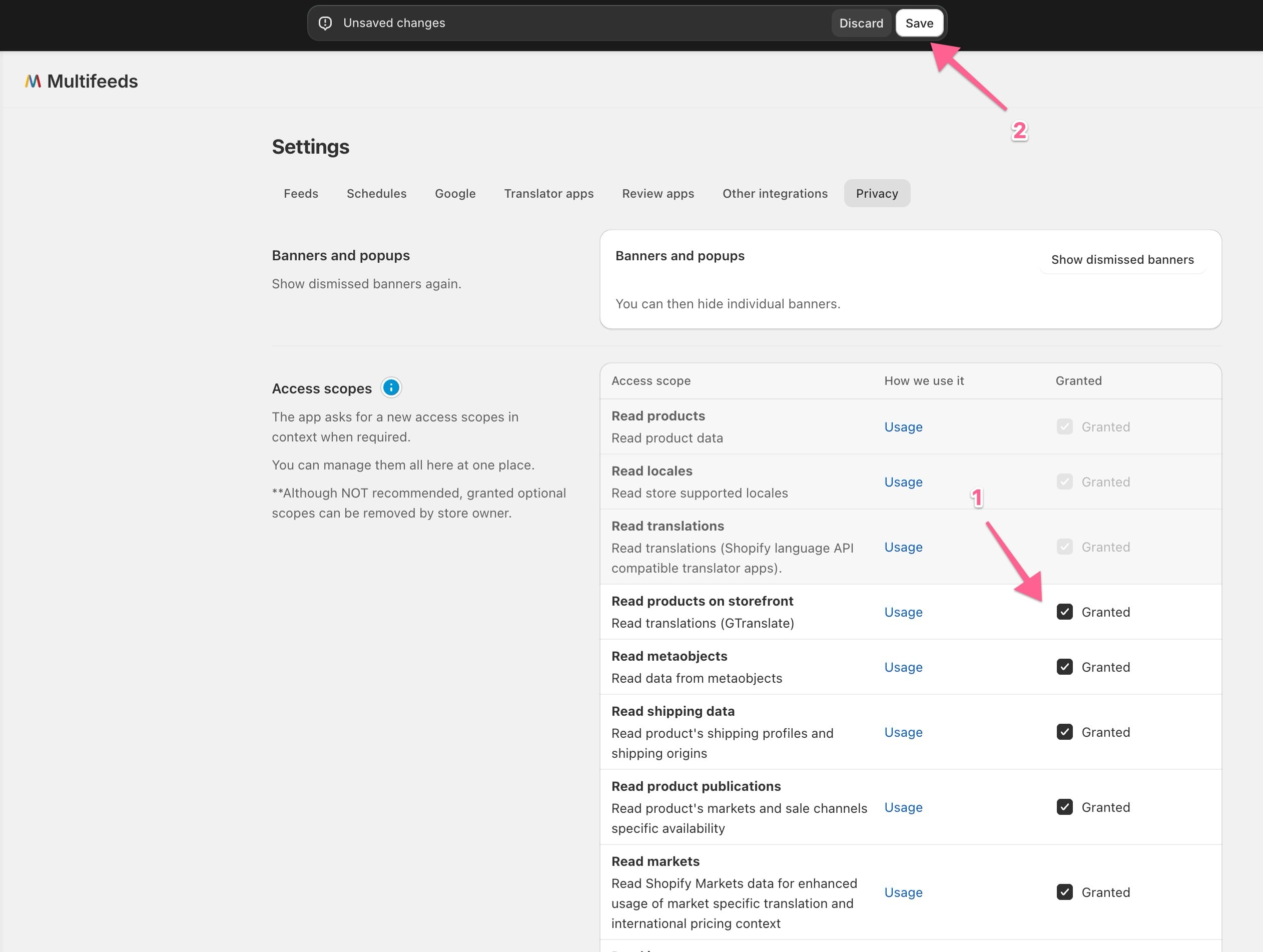
Granting missing permissions when a feature is enabled could be disruptive. It might be desired to grant all permissions to the app at once. It could be done in the Settings tab > Privacy.
1/ Select all the scopes that are required
2/ Click Save to bring up the consent screen