
Before you begin, make sure you already have a primary feed set up in your Google Merchant Center (GMC) account that is configured to submit local product data.
To ensure consistency in product information, you should create both the primary feed and the local inventory feed using the same app. These two feeds must have matching values for the following attributes:
Feed label
Target country
Language
ItemID
Once confirmed, follow these steps to create your Local Inventory Feed:
Enable the Local program in Google Merchant Center.
Depending on Google Merchant Center country, you might find it in Google Merchant Center right menu > ⚙️> Add-ons > Free local listings > Add > Local inventory ads > Add
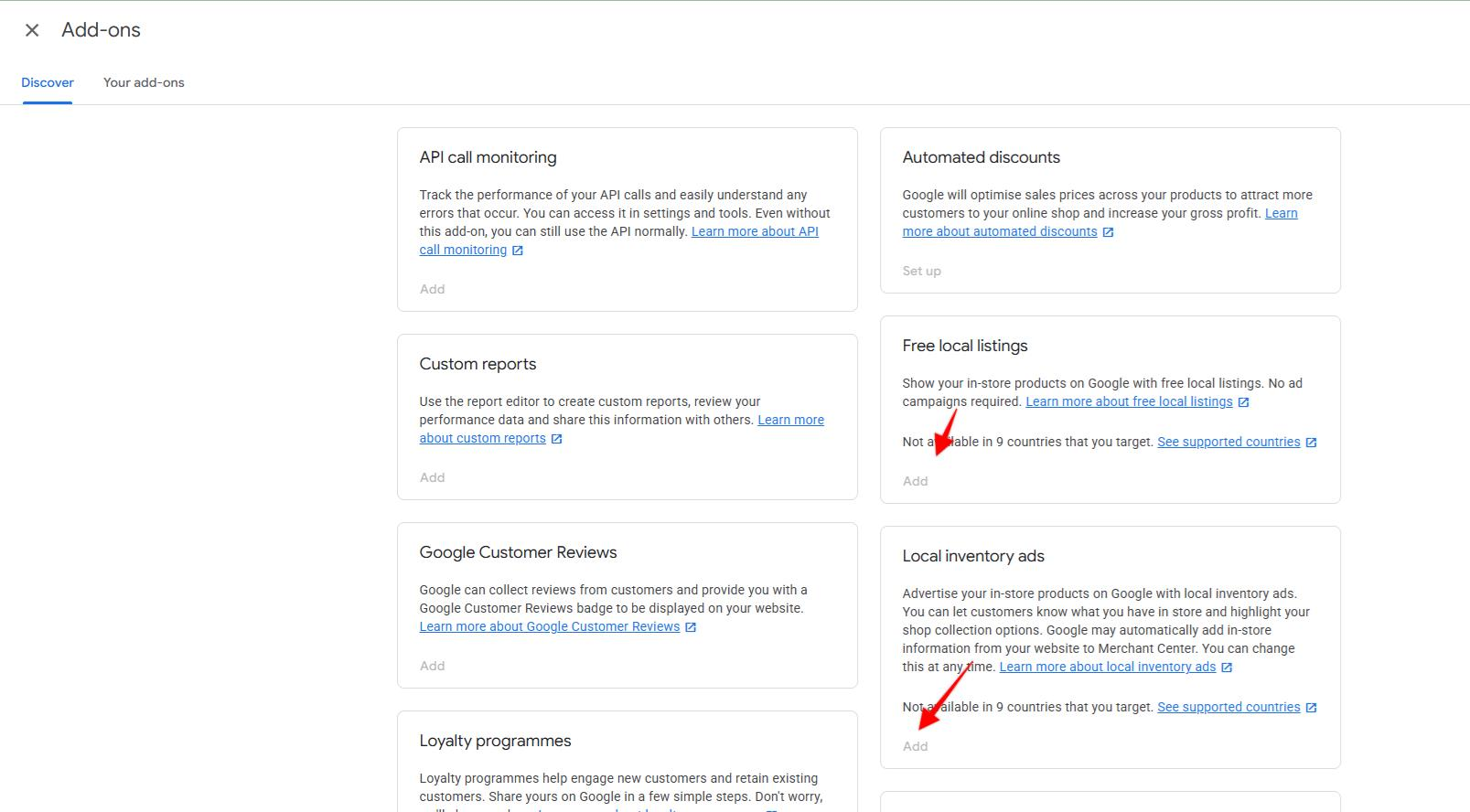
2. Have a Google My Business account linked to Google Merchant Center. Click here to learn how to link.
Have the store code ready as you will need it to create the local inventory feed. Click here to see how to find the store code.
Create the Local inventory feed.
The process depends on your primary feed type:
If your primary feed is a file-based feed (TSV, XML, CSV), then simply create a local inventory feed as shown in this video:
If your primary feed is an API feed, you will need to complete two steps:
- Duplicate the primary feed, but set the feed channel to “Local.”
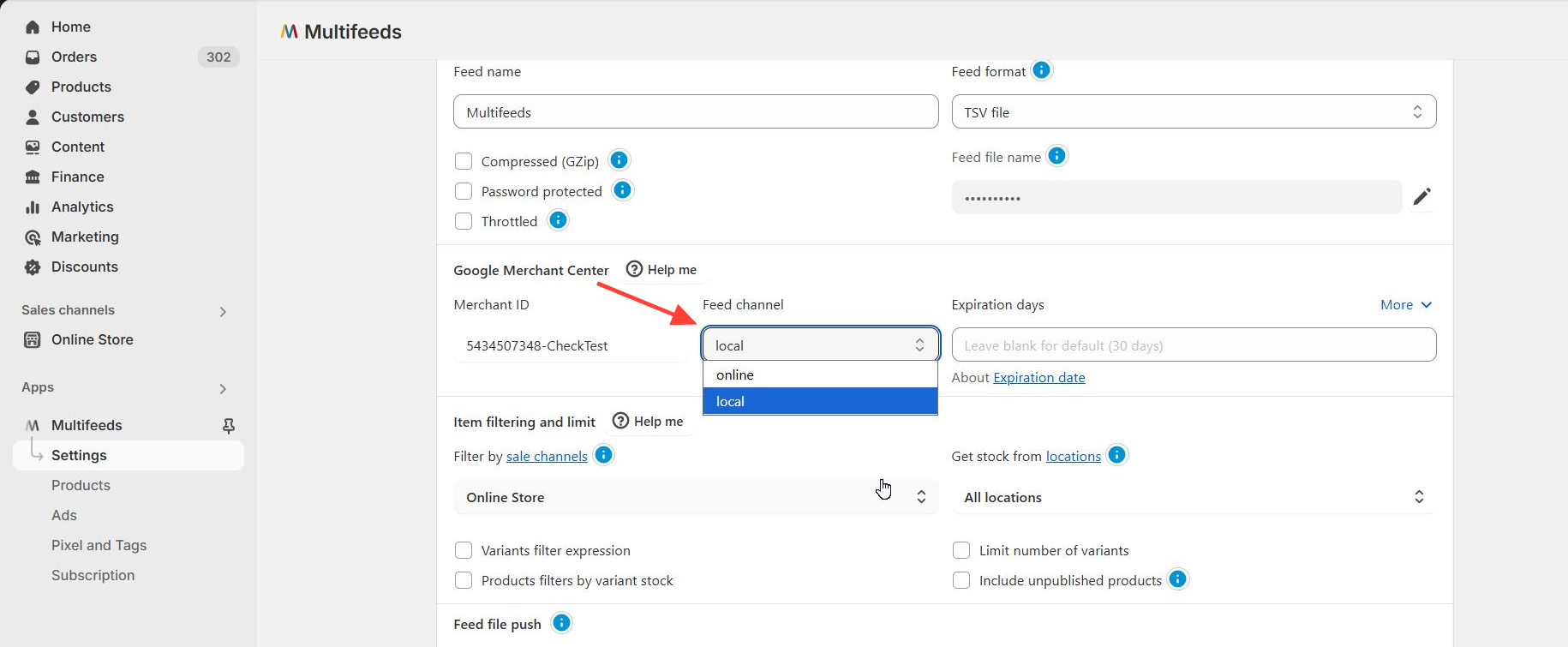
- Create the local inventory feed as shown in the video above.
Once the feed is submitted, you might need more steps to complete in Google Merchant Centre for the local program, including inventory verification, etc.
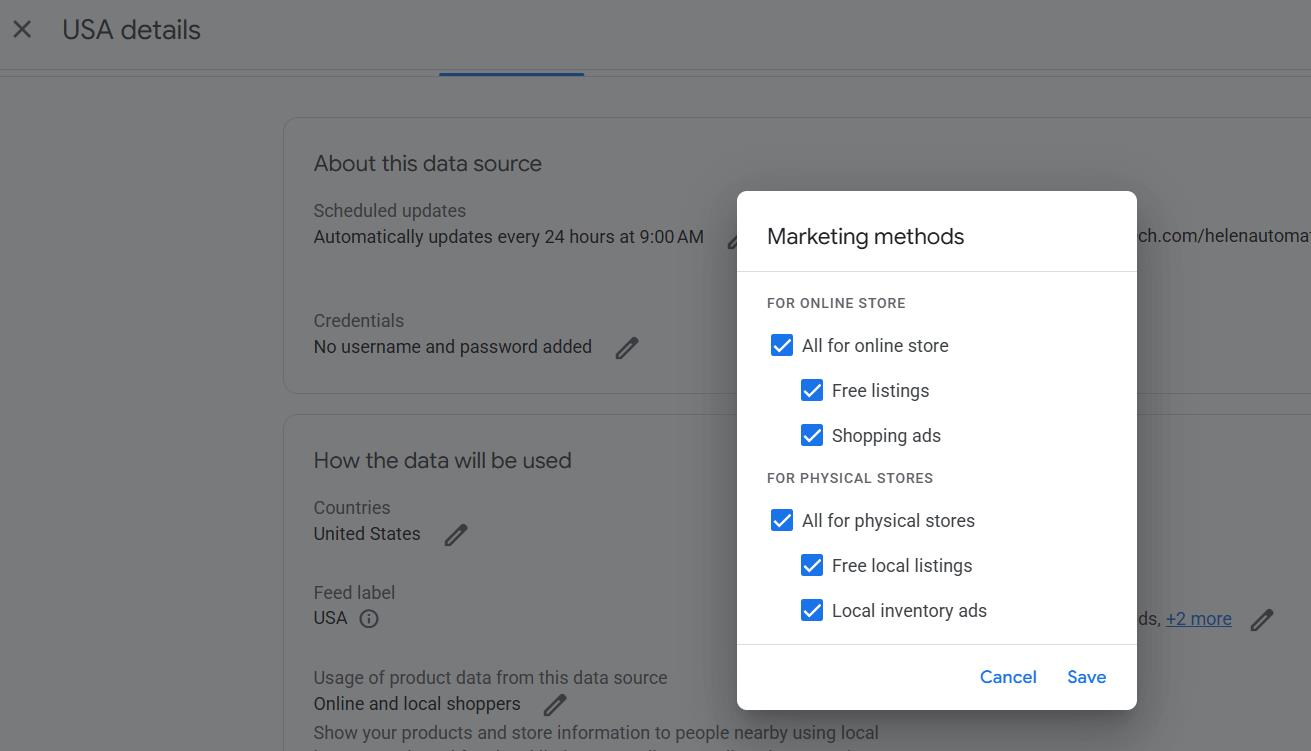
Activate all relevant marketing programs, including Local inventory ads and Free local listings.
Verify your inventory data. Please go to the Add-ons section in the app and follow the steps shown in this video: https://share.zight.com/6qupJ1jQ
If you need further assistance, feel free to reach out to our support team. We're here to help!