Use Pinterest Tracker to send ecommerce events to Pinterest for conversion tracking and remarketing audiences.
With Multifeeds' Pixel & tracking, setup is simple: create a tracker, choose events (ViewContent, AddToCart, Purchase, etc.), paste your Pinterest Tag ID, and save.
A GTM Web container connected in Multifeeds
Pinterest Tag ID (from Pinterest Business / Conversions)
Your Pinterest Tag ID (often starts with 26...).
Used to match products with Pinterest (catalog/product identifiers).
Total vs subtotal purchase value.
Go to Pixels & Tracking
Open the Client Trackers tab
Click Add tracker
Choose Pinterest
Select event(s) to track (commonly Purchase)
Fill in the fields above
Click Save/Connect
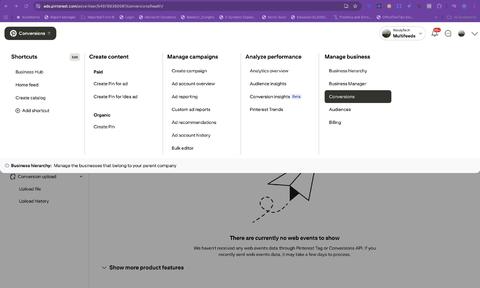
Log into your Pinterest account → Go to Conversions from the top-left menu.
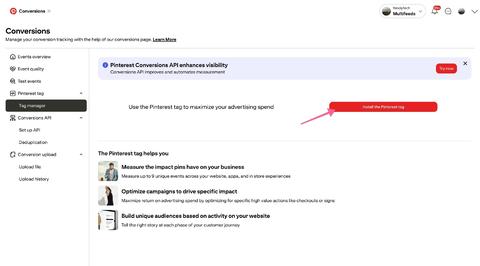
Go to Tag manager and click Install the Pinterest tag.
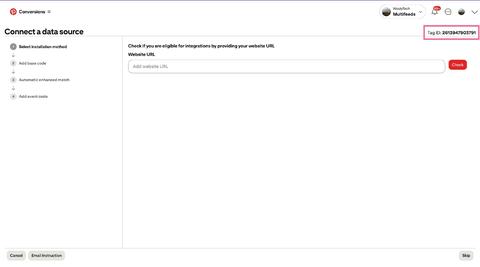
Enter the store URL and note the Tag ID (top right). You will paste this into Multifeeds.
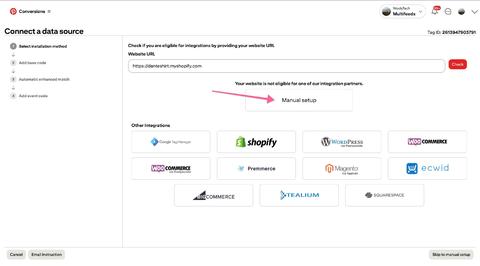
Continue with the data source setup. To set up Pinterest tag with Multifeeds, make sure you choose Manual setup.
Multifeeds supports enhanced matching customer data, so make sure the option is turned on in the next step (if available in your Pinterest setup).
Paste the Tag ID into your newly created Pinterest tracker in Multifeeds.
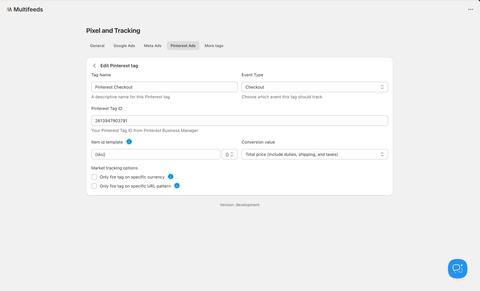
After saving the tracker, you can move on to test Pinterest tracking on your Shopify store.
Most of the standard events are supported out of the box:
https://help.pinterest.com/en/business/article/track-conversions-with-pinterest-tag
PageVisit: Views of primary pages, such as product pages and article pages
ViewCategory: Views of category pages
Search: Searches on your website
AddToCart: Items being added to shopping carts
Checkout: Completed transactions
AddPaymentInfo: Payment information added during the checkout process
InitiateCheckout: Beginning of the checkout process
ViewContent: Views on your web page such as a product or landing page
Install the Pinterest Tag Helper Chrome extension:
https://chromewebstore.google.com/detail/pinterest-tag-helper/gmlcbajhgoaaegmlbaclmmmhpmfdajmp?hl=en
Open the Shopify store in another browser and watch real-time data showing up as you navigate the store.
Tag not firing: check the tracker is not paused, and review consent settings and URL/currency filters.
Product matching issues: review Item ID Template to match your catalog/product feed.
Checkout events missing: verify URL filtering does not block checkout pages; enable whitelist checkout pages if you use URL pattern filtering.
Last updated on May 14, 2026
Pinterest tracker
