Use GA4 (Web) Tracker to send ecommerce events to Google Analytics 4 for reporting and attribution.
If you don’t have a GA4 account or GA4 property yet, create them first:
https://support.google.com/analytics/answer/9304153
A GTM Web container connected in Multifeeds
GA4 Measurement ID (format G-XXXXXXXXXX )
A Google Analytics Measurement ID is a unique code that connects your website to Google Analytics 4.
You can find your Measurement ID here:
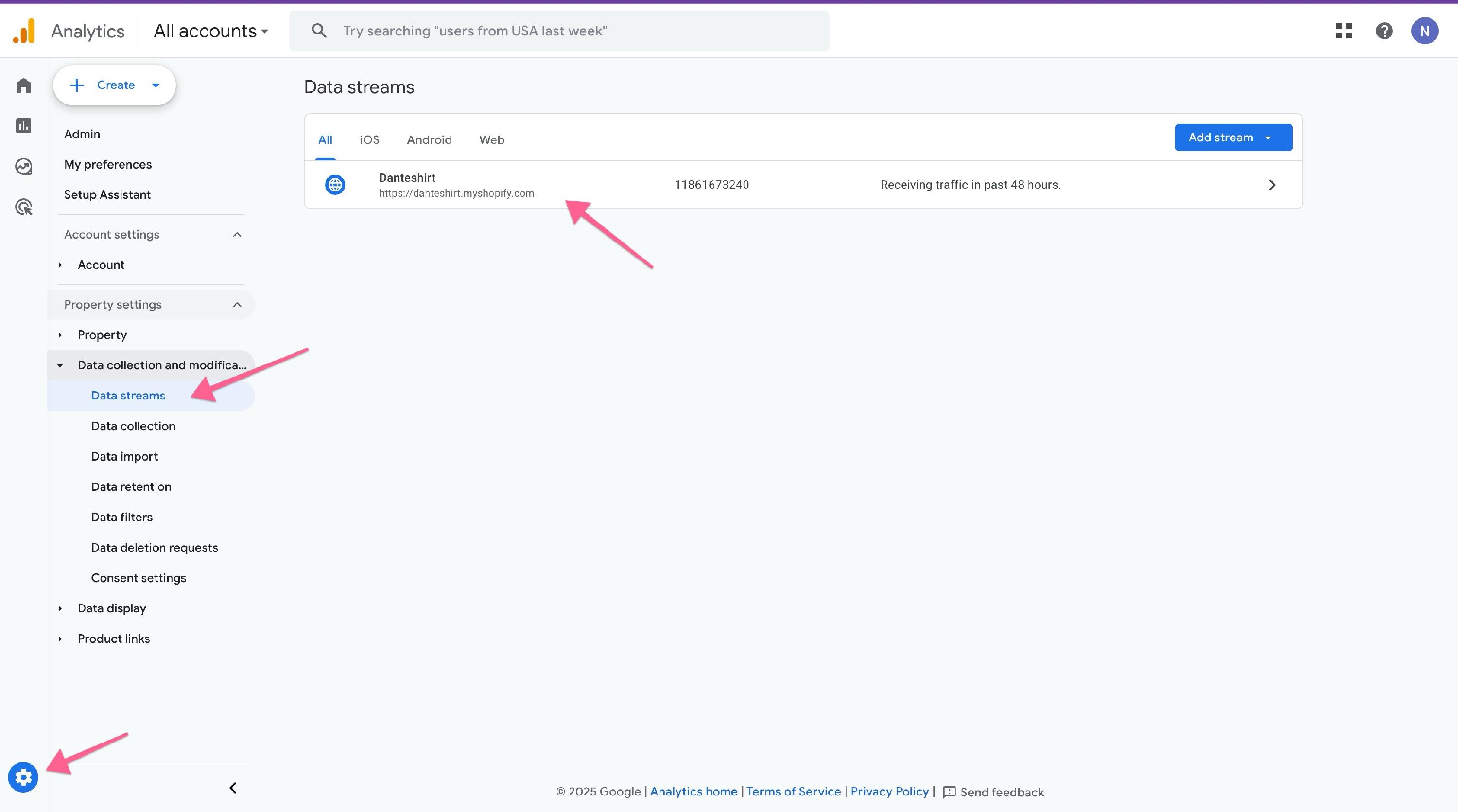
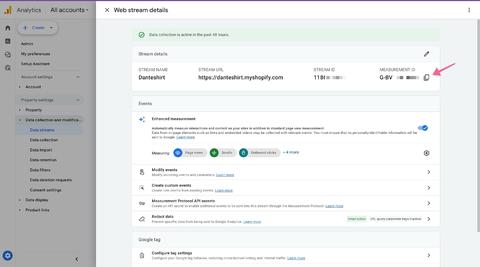
Open the data stream and copy the Measurement ID:
Paste it into the app:
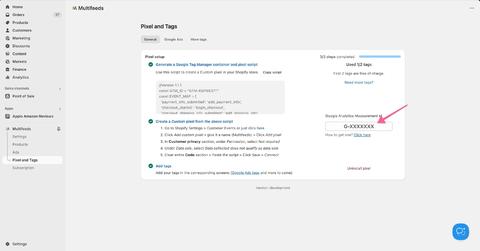
Your GA4 Measurement ID (G-... ).
Go to Pixels & Tracking
Open the Client Trackers tab
Click Add tracker
Choose Google Analytics 4
Select event(s) to track (multi-event supported; page_view is mandatory)
Enter Measurement ID
Click Save/Connect
Most of the recommended events for online sales are supported out of the box:
https://support.google.com/analytics/answer/9267735#online-sales
EventTrigger when a user...Supported | ||
| submits payment information during checkout | Yes |
| submits shipping information during checkout | Yes |
| adds items to cart | Yes |
| begins checkout | Yes |
| completes a purchase | Yes |
| removes items from cart | Yes |
| views the cart | Yes |
| views an item | Yes |
| views a list of items | Yes |
Option A — Realtime report (recommended, easiest)
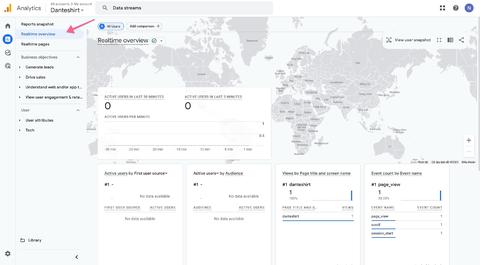
In Google Analytics, go to Reports → Realtime overview
Open your Shopify store in another browser/tab
Navigate product pages, cart, and checkout steps
Confirm realtime users/events appear as you browse
Realtime report:
Option B — Debugging tools (advanced)
Use GTM Preview to confirm tags fire for selected events.
Use GA4 DebugView if you have debug mode enabled (availability may vary by setup).
Invalid Measurement ID: must match G- + 10 uppercase letters/numbers.
Missing events: verify selected events and your consent/market filters.
No realtime data: allow a few minutes, confirm the correct property/data stream, and verify the tracker is Enabled.
Last updated on May 14, 2026
GA4 (Web) tracker
