
Facebook Tracker
Purpose / when to use
Use Facebook (Meta) Pixel Tracker to send events to Meta for ads optimization, conversion tracking, and remarketing audiences.
With Multifeeds, you can connect multiple pixels to your Shopify store using just one tracker.
Requirements
- A GTM Web container connected in Multifeeds
- Meta Dataset (Pixel) ID(s) from Meta Events Manager
Field reference (tracker-specific)
Facebook Pixel IDs (required)
One or more numeric Pixel/Dataset IDs (comma-separated supported).
Limited Data Use (LDU) (optional)
Enables Meta’s Limited Data Use mode.
Setup steps in Multifeeds
- Go to Pixels & Tracking
- Open the Client Trackers tab
- Click Add tracker
- Choose Facebook
- Select event(s) to track
- Fill in the fields above (Pixel IDs, LDU if needed, Item ID Template, Conversion Value)
- Click Save/Connect
How to find Meta Dataset (Pixel) ID
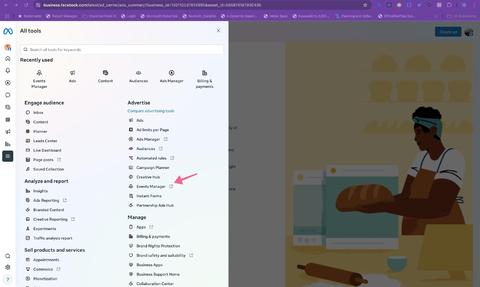
- Log into Facebook Business Manager → click All tools
- Open Events Manager → Data Sources
- Select your dataset/pixel → open the Settings tab → copy Dataset ID / Pixel ID
Events Manager:
Dataset ID in Settings:
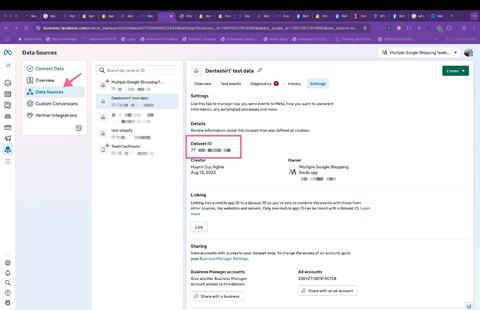
You can paste multiple IDs separated by commas to connect multiple pixels.
Supported events
Most of the standard events are supported out of the box (examples below):
| Event Name | Description | Notes |
|---|---|---|
ViewContent |
Visitor views a product page / content page. | Useful for catalog / retargeting signals. |
AddToCart |
Visitor adds a product to cart. | For Advantage+ catalog ads, contents is typically required. |
InitiateCheckout |
Visitor starts checkout. |
|
AddPaymentInfo |
Visitor submits payment info in checkout. |
|
Search |
Visitor searches on your store. |
|
Purchase |
Visitor completes a purchase. | Required: currency and value |
Testing + troubleshooting
Testing
Option A — Meta Events Manager (recommended)
- Go to Events Manager → Data Sources → your dataset
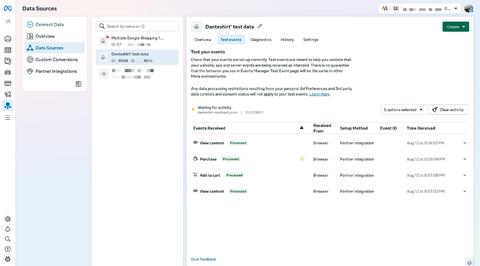
- Open Test events
- Open your Shopify storefront in another browser/tab and navigate product/cart/checkout
- Watch events appear in real time
Test events screen:
Option B — Browser extension
- Use Meta Pixel Helper to verify events on product/cart/checkout pages.
Also:
- Place a test order and confirm Purchase fires once with value and currency.
Troubleshooting
- Pixel IDs format error: use digits only, separated by commas.
- Product ID mismatch: update Item ID Template to match your Meta catalog IDs.
- Checkout events missing: verify you didn’t block checkout pages with URL/currency filters; enable Whitelist checkout pages when using URL pattern filtering.
Last updated on May 14, 2026
Facebook Tracker