
GA4 web tracker
Purpose / when to use
Use GA4 (Web) Tracker to send ecommerce events to Google Analytics 4 for reporting and attribution.
If you don’t have a GA4 account or GA4 property yet, create them first:
https://support.google.com/analytics/answer/9304153
Requirements
- A GTM Web container connected in Multifeeds
- GA4 Measurement ID (format
G-XXXXXXXXXX)
Getting the Measurement ID
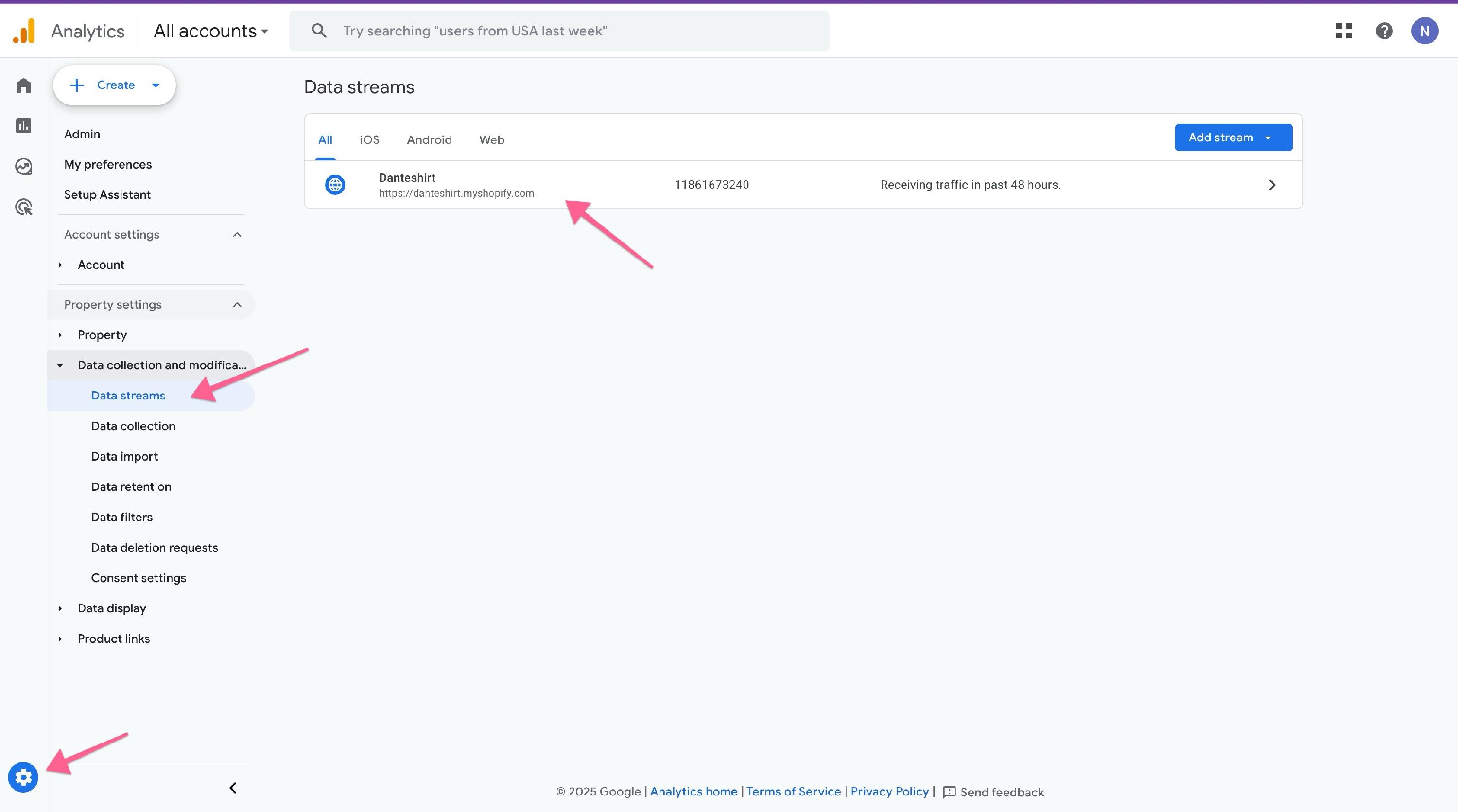
A Google Analytics Measurement ID is a unique code that connects your website to Google Analytics 4.
You can find your Measurement ID here:
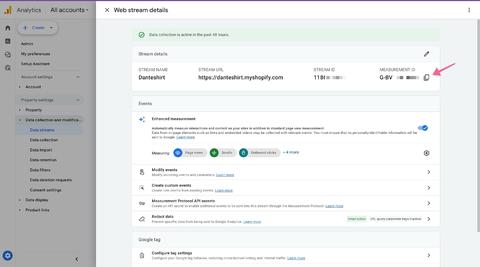
Open the data stream and copy the Measurement ID:
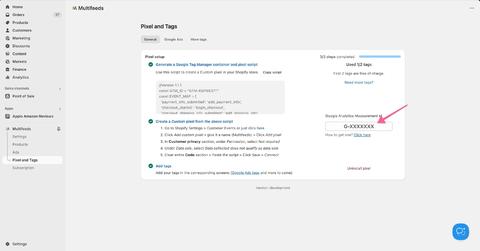
Paste it into the app:
Field reference (tracker-specific)
Measurement ID (required)
Your GA4 Measurement ID (G-... ).
Setup steps in Multifeeds
- Go to Pixels & Tracking
- Open the Client Trackers tab
- Click Add tracker
- Choose Google Analytics 4
- Select event(s) to track (multi-event supported; page_view is mandatory)
- Enter Measurement ID
- Click Save/Connect
Supported events (ecommerce)
Most of the recommended events for online sales are supported out of the box:
https://support.google.com/analytics/answer/9267735#online-sales
| Event | Trigger when a user... | Supported |
|---|---|---|
add_payment_info |
submits payment information during checkout | Yes |
add_shipping_info |
submits shipping information during checkout | Yes |
add_to_cart |
adds items to cart | Yes |
begin_checkout |
begins checkout | Yes |
purchase |
completes a purchase | Yes |
remove_from_cart |
removes items from cart | Yes |
view_cart |
views the cart | Yes |
view_item |
views an item | Yes |
view_item_list |
views a list of items | Yes |
Testing + troubleshooting
Testing
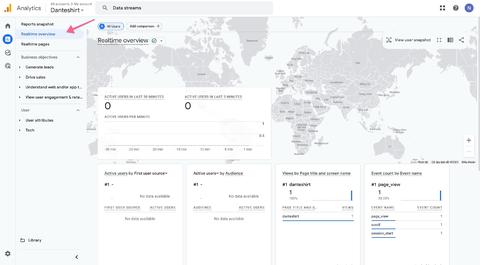
Option A — Realtime report (recommended, easiest)
- In Google Analytics, go to Reports → Realtime overview
- Open your Shopify store in another browser/tab
- Navigate product pages, cart, and checkout steps
- Confirm realtime users/events appear as you browse
Realtime report:
Option B — Debugging tools (advanced)
- Use GTM Preview to confirm tags fire for selected events.
- Use GA4 DebugView if you have debug mode enabled (availability may vary by setup).
Troubleshooting
- Invalid Measurement ID: must match
G-+ 10 uppercase letters/numbers. - Missing events: verify selected events and your consent/market filters.
- No realtime data: allow a few minutes, confirm the correct property/data stream, and verify the tracker is Enabled.
Last updated on May 14, 2026
GA4 (Web) tracker