
Google Ads Conversion (Web) tracker
Purpose / when to use
Use Google Ads Conversion (Web) Tracker to send conversion events (especially Purchase) to Google Ads for bidding and attribution.
Requirements
- A GTM Web container connected in Multifeeds
- Conversion ID and Conversion Label from Google Ads (Optional: Google account + Customer ID for convenience)
Which event should I track?
A conversion tracker sends a specific customer action to Google Ads so you can use it as a bidding/optimization goal. The most common conversion event is purchase, but you can also track “micro conversions” earlier in the funnel.
| Event | Meaning |
|---|---|
add_payment_info |
Visitor submits payment info (e.g. credit card number). |
begin_checkout |
Visitor starts checkout and enters personal details (email, phone, address, etc.). |
add_shipping_info |
Visitor provides shipping details. |
add_to_cart |
Visitor adds an item to cart. |
purchase |
Visitor completes a purchase. |
view_cart |
Visitor opens the cart. |
view_search_results |
Visitor views search results on your storefront. |
view_item_list |
Visitor views a collection/category page. |
view_item |
Visitor views a product page. |
page_view |
Visitor views a page on your site. |
Funnel tip (recommended)
If your campaigns are new and purchase volume is low, consider optimizing first on add_to_cart or begin_checkout (more frequent signals). After a couple of weeks when Google has enough data, you can switch the primary conversion goal to purchase.
Why connect a Google Ads account? (optional)
If you connect your Google Ads account, Multifeeds can help reduce manual setup steps (and potential mistakes) when aligning your tracker with the correct conversion action in Google Ads.
If you prefer, you can also set up the conversion action manually in Google Ads and only enter Conversion ID and Conversion Label here.
Connect a Google Ads account when creating the tracker to have Multifeeds auto-generate Google Ads conversion action and connect it to the tracker via conversion ID / conversion Label
Field reference (tracker-specific)
Conversion ID (required)
Numeric ID from Google Ads.
Conversion Label (required)
Label generated in Google Ads.
Google account (optional)
Helps with account connection/auto-generation. Not required if you enter Conversion ID/Label manually.
Customer ID (optional)
Helps with account connection/auto-generation.
Enable product reporting (required for Google Automated Discounts integration)
When enabled, sending product data (item id, price, name, etc.) to Google Ads.
Merchant ID (optional)
Your Google Merchant Center ID.
Feed country (optional)
Feed country used for product reporting.
Feed language (optional)
Feed language used for product reporting.
Item ID matters (especially with product reporting)
If you enable product reporting, the Item ID sent in conversion events must match the IDs used in your product feed / Google Merchant Center. If IDs don’t match, Google may not be able to attribute conversions to the correct products.
Common Item ID formats:
shopify_XX_{product_id}_{variant_id}(some Shopify/Google channel setups){product_id}_{variant_id}{variant_id}{sku}
Example UI (Item ID template configuration):
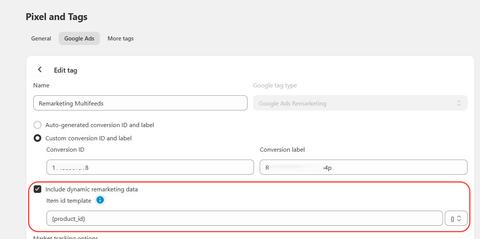
Template tokens example (supported tokens include {product_id} , {variant_id} , {sku} ):
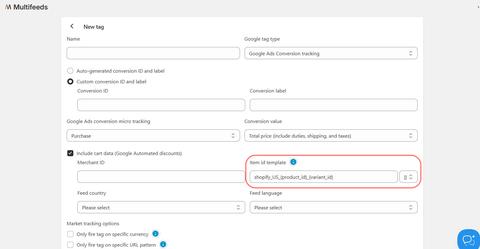
Setup steps in Multifeeds
- Go to Pixels & Tracking
- Open the Client Trackers tab
- Click Add tracker
- Choose Google Ads Conversion
- Select event(s) (commonly Purchase)
- Enter Conversion ID and Conversion Label (or connect an account if you use that workflow)
- (Optional) Turn on Enable product reporting and fill the extra fields
- Click Save/Connect
Testing + troubleshooting
Testing
- Use GTM Preview to confirm the conversion tag fires on the intended event.
- In Google Ads, check conversion diagnostics / tag status (may take time to update).
- Place a test order and confirm Purchase fires once.
Troubleshooting
- Conversion not recorded: confirm you used the correct Conversion ID/Label for the correct conversion action.
- Duplicate conversions: ensure the same conversion isn’t fired by multiple sources.
- Product data mismatch: verify Item ID Template matches your feed/Merchant Center IDs.
- Checkout conversions missing: verify URL/currency filters don’t block checkout pages; enable “Whitelist checkout pages” if you use URL pattern filtering.
Last updated on May 14, 2026
Google Ads Conversion (Web) tracker