
Google Ads Remarketing (Web) Tracker
Purpose / when to use
Use Google Ads Remarketing (Web) Tracker to build audiences for retargeting and optionally send dynamic remarketing product data.
Unlike conversion tracking (usually a single goal event like Purchase), remarketing tracking can send multiple user activities to Google Ads so it can later show effective remarketing ads.
Requirements
- A GTM Web container connected in Multifeeds
- Conversion ID from Google Ads (Conversion Label is optional)
What does the remarketing tag track?
Typical tracked activities include:
| Event | Meaning |
|---|---|
view_search_results |
User visits a search results page. |
view_item_list |
User visits a category/collection page. |
view_item |
User visits a product page. |
add_to_cart |
User adds an item to cart. |
purchase |
User completes a purchase. |
Field reference (tracker-specific)
Conversion ID (required)
Numeric ID from Google Ads.
Conversion Label (optional)
Only required in some setups.
Google account / Customer ID (optional)
Convenience fields for account context/connection (if you use that workflow). Not required if you enter Conversion ID manually.
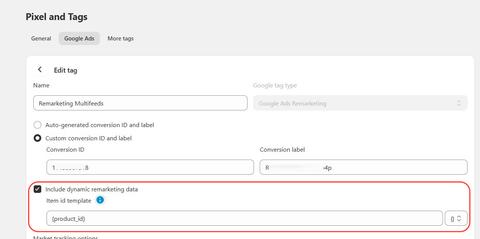
Include dynamic remarketing data (optional)
When enabled, additional fields appear and the tracker includes product identifiers for dynamic remarketing.
Item ID matters (dynamic remarketing)
The Item ID sent in remarketing events must match the item IDs in your product feeds, otherwise Google may not be able to match events with products in Google Merchant Center.
Common Item ID formats:
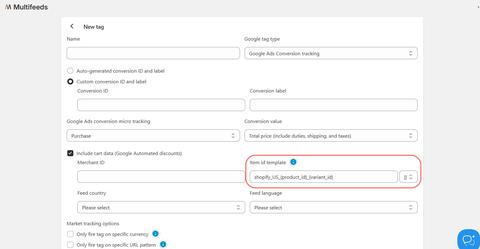
shopify_XX_{product_id}_{variant_id}(some Shopify/Google channel setups){product_id}_{variant_id}{variant_id}{sku}
Remarketing note: for some feed setups, dynamic remarketing may match against item group ID (often equivalent to Shopify Product ID). In those cases, using {product_id} can be preferred.
Example UI (Item ID template configuration):
Template tokens example (supported tokens include {product_id} , {variant_id} , {sku} ):
Market tracking options (recommended for multi-market stores)
If you run ads for different markets (different storefront URLs / currencies), use market tracking options so one market’s activity does not skew another.
- Specific currency
- Specific URL pattern (regex)
Example (separating FR vs US storefront tracking):
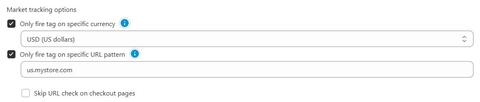
Important: when using URL pattern filters, be careful not to block checkout pages unintentionally. If your checkout URL differs from storefront URLs, consider enabling the Whitelist/Skip URL check on checkout pages option (recommended to use together with a currency filter).
Setup steps in Multifeeds
- Go to Pixels & Tracking
- Open the Client Trackers tab
- Click Add tracker
- Choose Google Ads Remarketing
- Select event(s) (multi-event supported)
- Enter Conversion ID (and label if needed)
- (Optional) Enable Include dynamic remarketing data and fill in the extra fields
- Click Save/Connect
Testing + troubleshooting
Testing
- Use GTM Preview to confirm remarketing tags fire on product/cart pages (and other selected events).
- Check Google Ads tag diagnostics (may take time to update).
Troubleshooting
- Audiences not populating: verify events fire and consent/filters allow tracking.
- Dynamic remarketing not working: Item ID Template must match feed IDs (sometimes product group ID vs variant ID depending on your feed setup).
- Checkout events missing: verify URL/currency filters don’t block checkout pages; enable whitelist checkout pages when using URL pattern filtering.
Last updated on May 14, 2026
Google Ads Remarketing (Web) Tracker