
AWIN (Web) Tracker
AWIN (Web) Tracker
Purpose / when to use
Use AWIN (Web) Tracker to track affiliate conversions for AWIN and support your affiliate program attribution.
Accurate tracking is crucial for correct affiliate attribution (so you don’t underpay or overpay affiliates).
Requirements
- A GTM Web container connected in Multifeeds
- AWIN Advertiser ID (numeric)
How to find your AWIN Advertiser ID
You can find your AWIN Advertiser ID by logging into your AWIN account and looking at the top right corner of your dashboard.
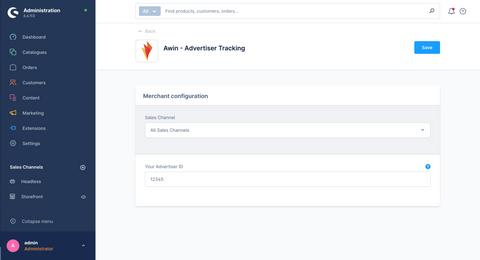
- Copy the Advertiser ID from AWIN Dashboard
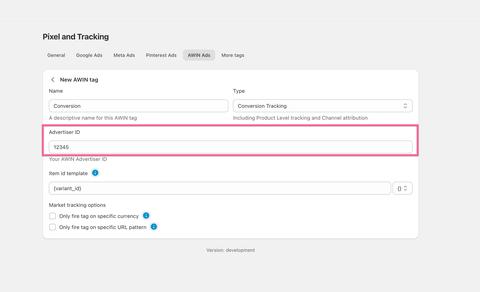
- Paste it into your newly created AWIN tracker in Multifeeds
Field reference (tracker-specific)
Advertiser ID (required)
Your AWIN Advertiser ID (numbers only).
Setup steps in Multifeeds
- Go to Pixels & Tracking
- Open the Client Trackers tab
- Click Add tracker
- Choose AWIN
- Enter Advertiser ID
- Configure Item ID Template
- Click Save/Connect
Conversion tracking & attribution (how it works)
When a user lands on your site, the tracking logic checks URL parameters and sets a cookie named AwinChannelCookie. It can be:
- aw: the last click came from an AWIN link
- direct: the last click had no source in its URL
- other: the last click came from a non-AWIN source
Details:
- Cookie name:
AwinChannelCookie - Source URL parameters checked:
utm_source,source,gclid,fbclid - AWIN source value:
aw,awin - Parameters are checked left to right, and the last parameter value decides the attribution.
Testing + troubleshooting
Testing
- Use GTM Preview to confirm the AWIN tag fires on the Purchase/thank-you page.
- Place a test order and confirm Purchase fires once.
- Follow AWIN’s documentation to test tracking:https://advertiser-success.awin.com/s/article/Testing-tracking-guide?language=en_GB
Troubleshooting
- Invalid advertiser ID: must be numeric only.
- Missing conversions: check consent settings and checkout URL filtering.
Consent signals (optional)
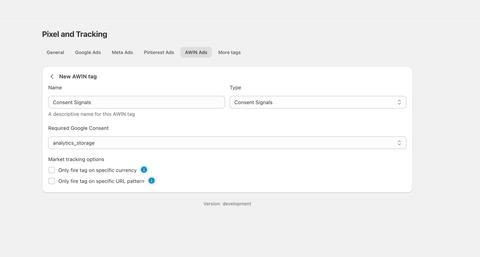
If your store needs to obtain cookie consent for AWIN tracking and inform AWIN of the consent status, you can add a Consent Signals tag.
The tag sets consent status based on the selected Google Consent Mode parameter. A recommended value is analytics_storage , corresponding to Shopify analyticsProcessingAllowed .
Last updated on May 14, 2026