
How to add data source URL to Pinterest
Pinterest is an excellent platform for ecommerce businesses looking to reach interested leads. By running Pinterest ads for ecommerce, you'll help your company expand its reach with your products and appear in more relevant feeds.
Now that you have created your product feed, it’s time to add your feed to the Pinterest catalog. Before setting up your product catalog, first, you must claim your website domain before beginning.
After claiming your website and creating your product feed to Pinterest requirements, now it is time to start your catalog setup.
1. Navigate to Catalogs (catalogs.pinterest.com)
- Creat a Pinterest feed from Multifeeds, check out short video below:
3. You save the feed at the very last step and approve our subscription (if may ask) to make URL available.
- Click “Get Started”
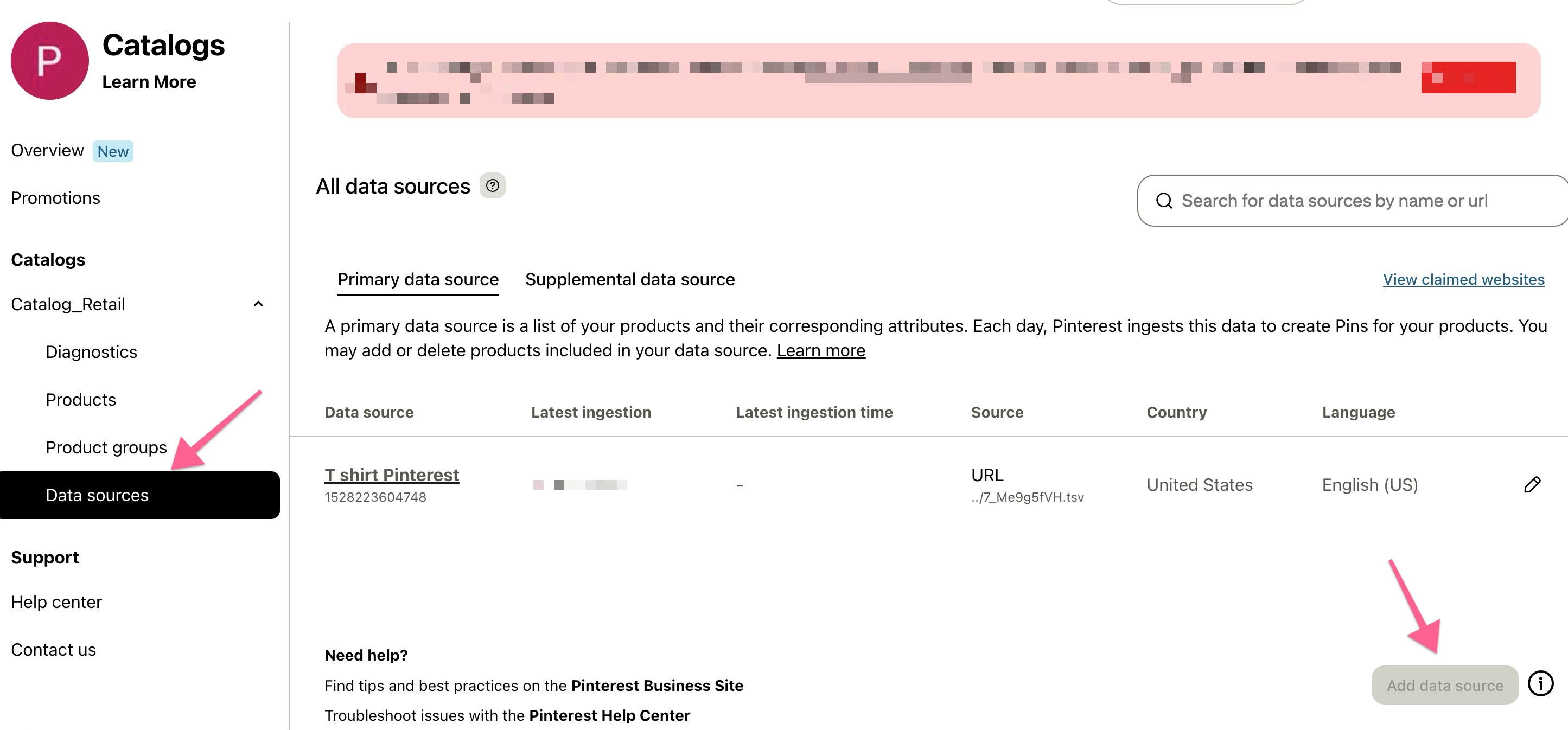
5. Click “Add data source” and then upload URL to Pinterest catalog:
6. Input your data source URL (must begin with http://, https://, ftp://, or sftp://, and include the full file path and no credentials in the URL).
7. Select the file format— CSV, TSV, or XML
8. Select “My data source is password-protected” if your data source requires credentials, and input credentials.
You will be then navigated to the main Data Source page. Wait for confirmation email from Pinterest for the status of your data source submission.