Given how images are important in e-commerce these days, the app allows extensive customization of selection of listing images for each listed item either manually in product level feed settings, or with following settings on the Media tab of the feed editor.
Feed items are generated from a product variant. At the time of this writing, Shopify only allows a variant to be assigned only 1 image. This image will typically serve as the main image of the feed item. There is no "Shopify ways" to assign more than 1 image to a variant.
You can overcome this problem with the following options:
Default image selection might not work for all use-cases. For example, shops can use customization or apps to have more images per variants (check out here, for example). In these customization or apps, there must be a way to link an image to a variant (affinity), and this is mostly done via the image alt text or the image name (which then becomes a part of the image URL). For example, an image may have alt text "Red" to indicate that it "belongs" to the red variant of a shirt. With some landing page theme modification, this will allow the right images to show up when a variant is selected. This linking between variant and images is done with Variant image affinity, which allows to add an expression, when evaluated to true indicate linking between an image and its variant.
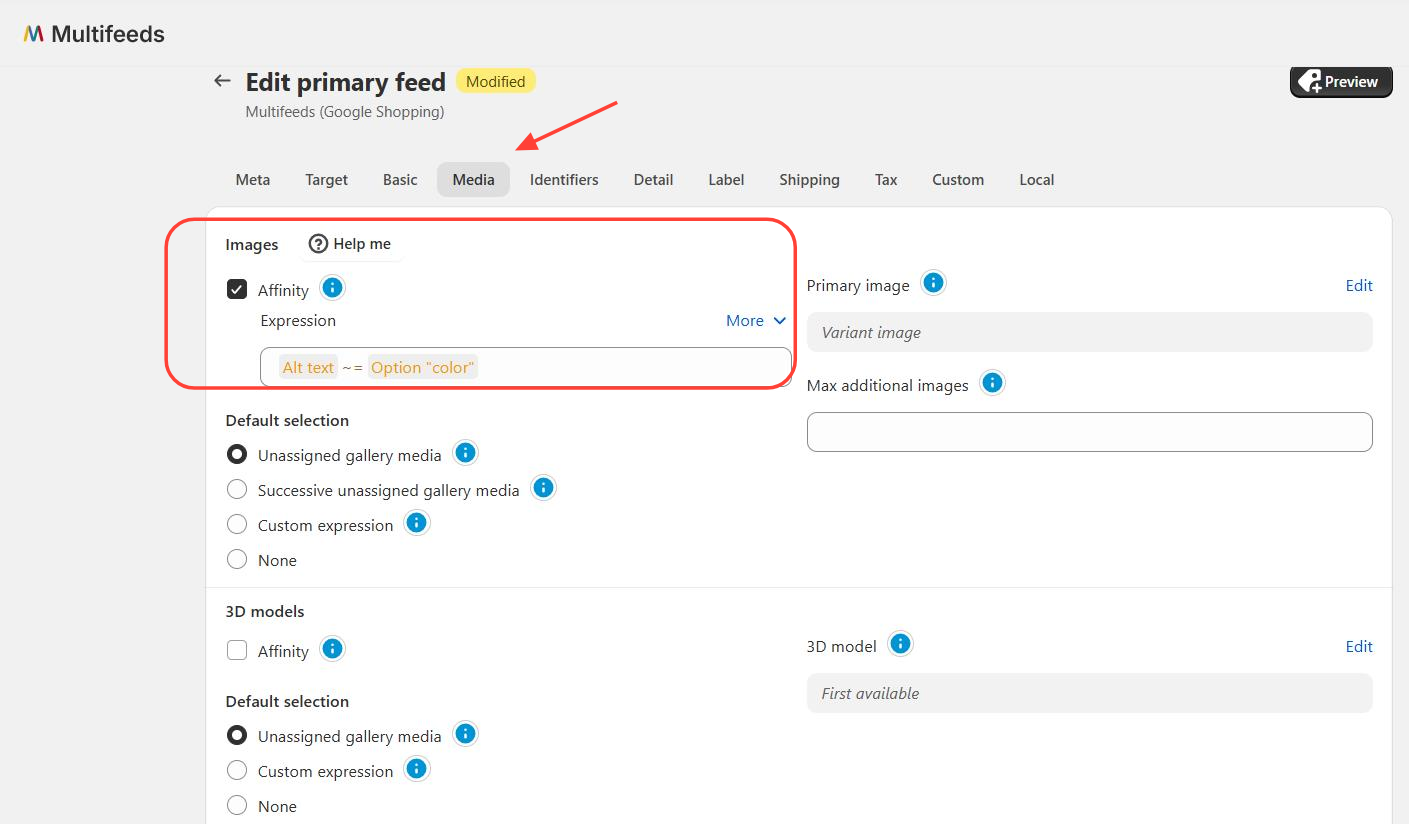
If enabled, Variant Image affinity takes precedence over Image selection options.
Image selection is evaluated only if Variant Image affinity is not returning any images.
The feature in action:
Examples:
1/ Pick images that have color built in to their names (or URLs):
'Image url' ~= 'Option "color"'
2/ Pick images that have the alt text set to a variant size:
'Image alt text' ~= 'Option "size"'
3/ Skip a particular image that reported with Google violation:
'Image alt text' != "nudity"
The following expression indicates that if the alt text of the image contains the color of the variant, then the variant is linked to the image. Other tokens for the expression include image URL different variant options, attributes, and metafields.
If Variant image affinity is not turned on, or not returning any images, the app will evaluate the options below to pick images for a variant.
By default, the app will select the "additional" images for a variant from the product gallery, which meet these conditions:
1/ Not assigned to any variants, or assigned to only the variant in question.
2/ Different from the main image.
This option allows you to pick the images the same way that some variant image apps (for example StarApps Variant Image in the Shopify app store) is selecting images. Basically for a variant, it selects successive images in the product gallery that follow the assigned image of that variant to be image of that variant. The selection goes on until it finds an image that is assigned to another variant (which is then the start of the images belong to that variant).
This allows you to specify item images by using expressions. Available tokens include image variant/product metafields (metafields that contain image or image list).
Select no additional images for the variant.
Please note that both primary and additional images can be manually customized (and assigned) to variants using product level feed settings, which take precedence over the image selection settings at the feed level.
You may also change the main image of product that will show in the shopping ads on this tab. You can customize the main image in a variety of ways, like using a variant image, the first product image, the second product image, and so on, or even selecting an image from metafields.
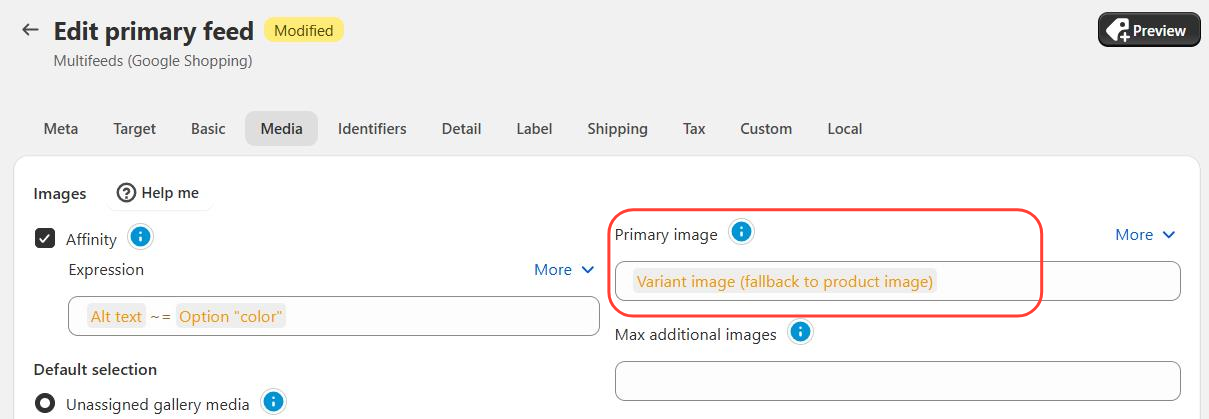
Do note that the primary image does not have to come from the images selected by the images selection settings. However, one can pick an image from the selected list by using the "variant images" list (1st variant image, 2nd variant image and so on).
Variant images refer to the images that are selected for a variant by the Images selection settings.
Some platforms, including Google Shopping, allow submission of additional images apart from the primary image.
Additional images of a variant include the images selected by the Images selection settings, excluding the primary image.
Primary image is excluded from the additional images by comparing image URL.
Besides, the submission of additional images can be controlled by number of additional images.
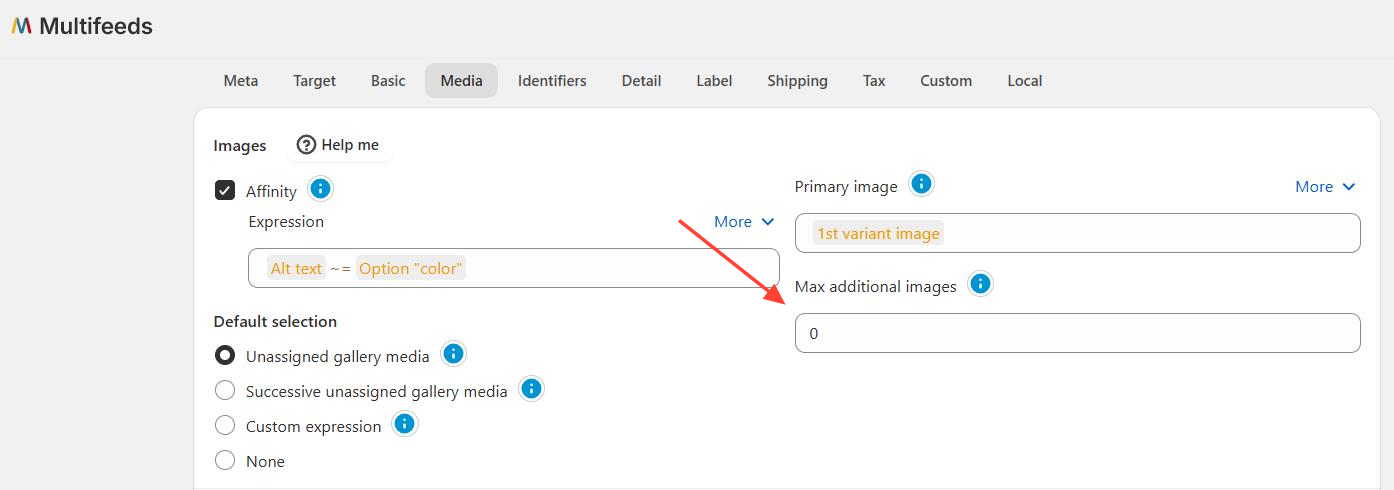
Set this value to 0 will skip submission of additional images.
